Access Keys
|
If your question is not addressed below, contact us through our support form and we will get back to you shortly. |
|
 |
Where can I get access keys for using S3 compatible tools to access IDrive® e2? |
|
What is the Allow Listing option for an access key? |
|
Where can I view the endpoints for the IDrive® e2 regions? |
|
Where can I find the service URLs for IDrive® e2's storage regions? |
As the Admin, you can create and manage access keys for your buckets. These keys can be used to access the IDrive® e2 cloud storage.
To create an access key,
- Sign in to IDrive® e2 account via any browser.
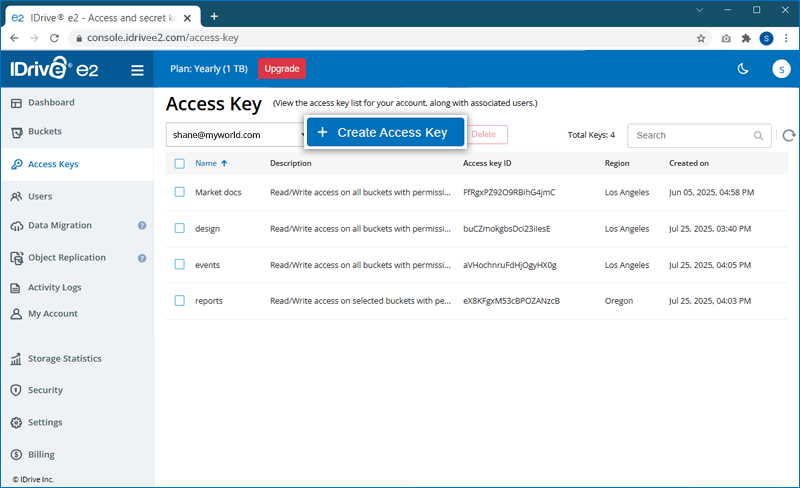
- Navigate to the 'Access Key' tab and click 'Create Access Key'.
- Enter a name for the access key.
- Select a region from the list of enabled regions in the dropdown list.
- Set an expiry date and time for the access key.
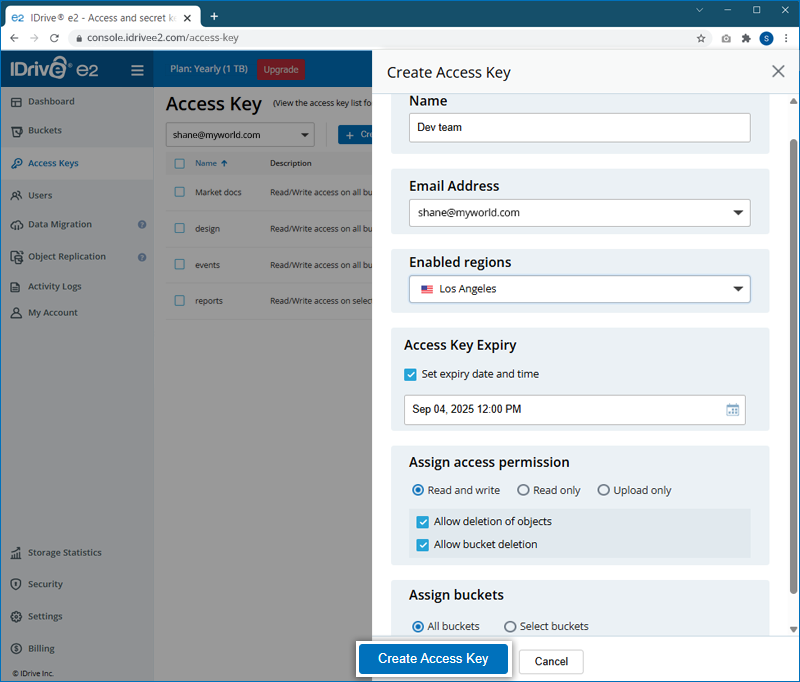
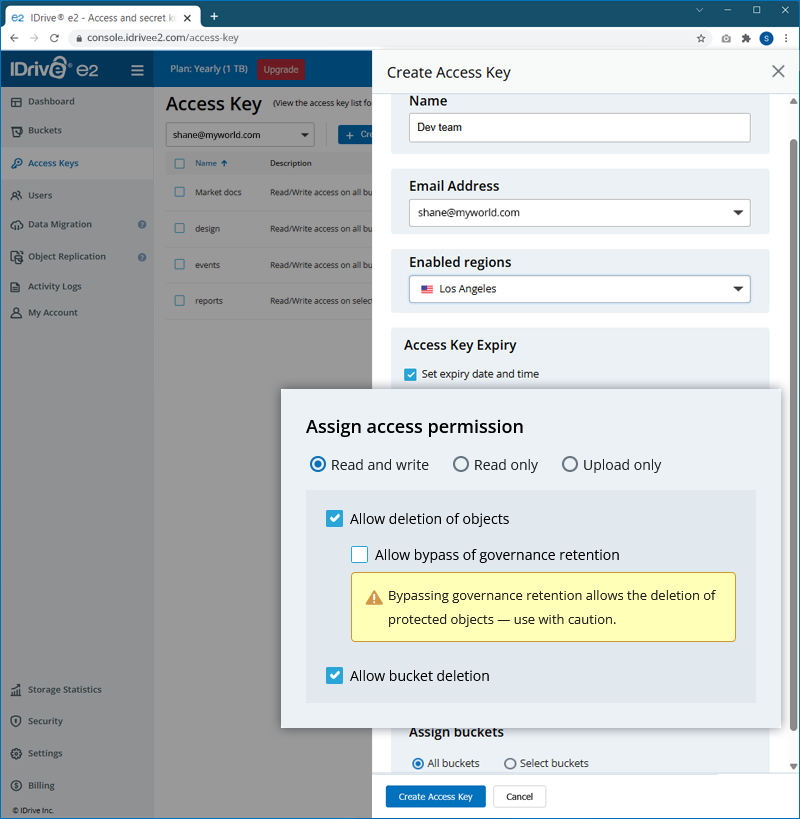
- Select the required access permission - Read and write, Read only, or Upload only.
-
If assigning Read and write permissions to the access key, then set preferences for object and bucket deletion.
Note: A key with permission to delete objects can bypass governance retention. This allows deletion of Governance-locked objects before retention expiry. So use it with caution. -
For Read only and Upload only access keys, optionally enable Allow Listing to allow users to view objects within the assigned buckets.
- Assign buckets, if you want to enable access using these keys. You can choose specific or all buckets.
Note: By default, all buckets will be selected. - Click 'Create Access Key'. An Access Key ID and Secret Access Key will be generated.
Download / copy and save the details of the access key.
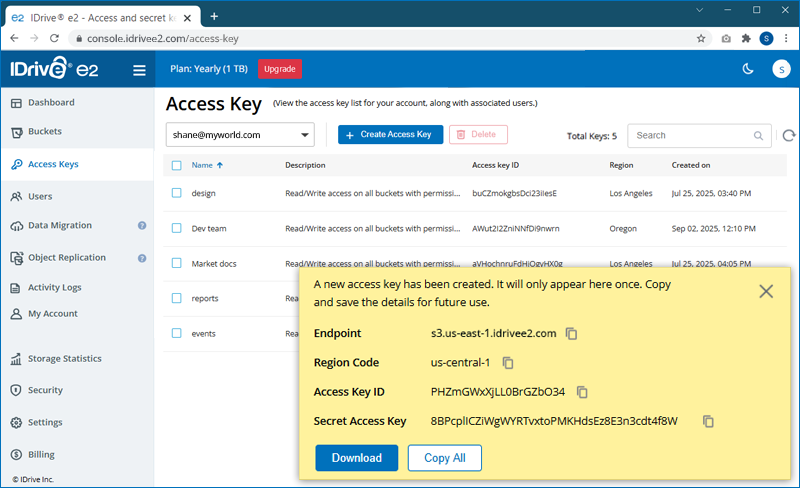
You can view and manage all access keys created under your account, including the ones you create for yourself and those created by your users, from the 'Access Key' tab.
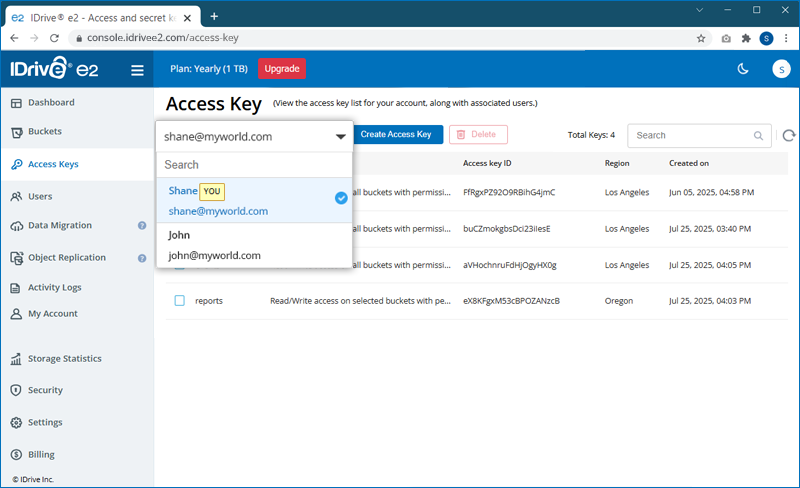
Note:
- Access and manage your IDrive® e2 storage using third-party S3 compatible tools from up to 1000 concurrent HTTP connections.
- You can create up to 250 access keys in a region. Contact support for further assistance.
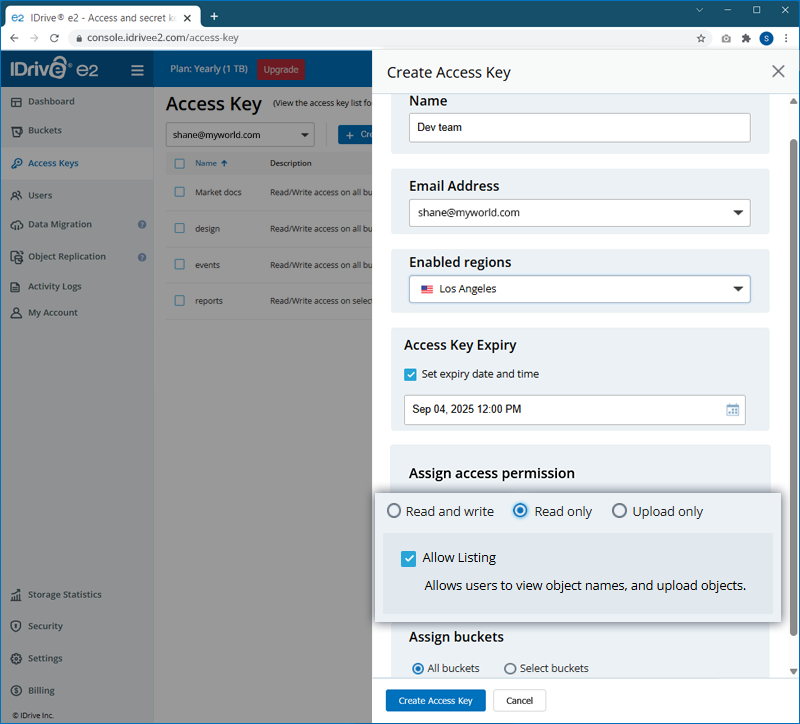
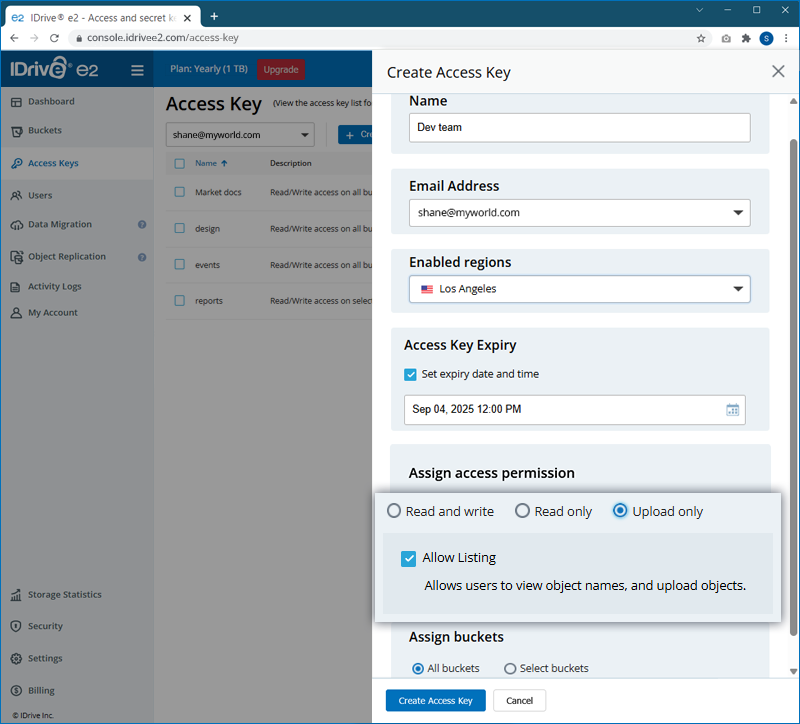
Allow Listing enables users to view objects within the buckets assigned to the access key.
- For Read Only access keys, users can list and view objects in the assigned buckets.
- For Upload Only access keys, users can view objects and upload objects to the assigned buckets.
- When Allow Listing is disabled, users cannot list or view objects, even if they have Read Only or Upload Only permissions.
The 'Enabled regions' section on the Dashboard tab displays the endpoint URL for all enabled regions. To add to the enabled regions list, click 'Add New Region', select a region from the dropdown, and click 'Enable'.
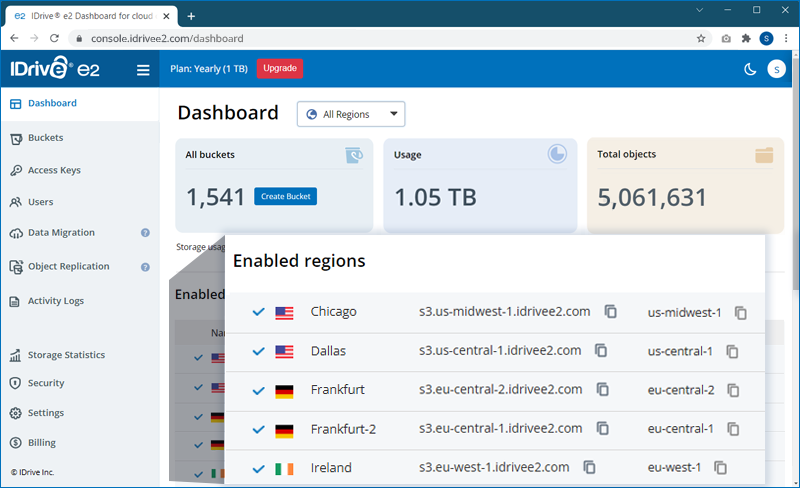
IDrive® e2 provides region-specific service endpoint URLs so that you can connect your third-party application to the endpoint that matches your bucket's region. This ensures optimal performance, reduces latency, and speeds up data transfers.